Table of Contents
You are here:
Print

RentPress: Gravity Forms Add-On

RentPress: Gravity Forms Add-on

The RentPress: Gravity Forms Add-on is a specialized integration tool designed to connect your WordPress website’s forms directly to multifamily property management software. By linking Gravity Forms to major CRMs like RentCafe, Entrata, AppFolio, Funnel, Anyone Home, and Knock, the plugin automates lead capture, ensuring that prospect data flows seamlessly from your website into your leasing workflow. It supports multiple lead destinations simultaneously and includes robust logging features to track submission success and conversion data.


Prerequisites

Before installing this add-on, ensure your environment meets the following criteria and updated to their latest versions:


Step 1: Install the Add-On

  1. Log in to your WordPress dashboard.
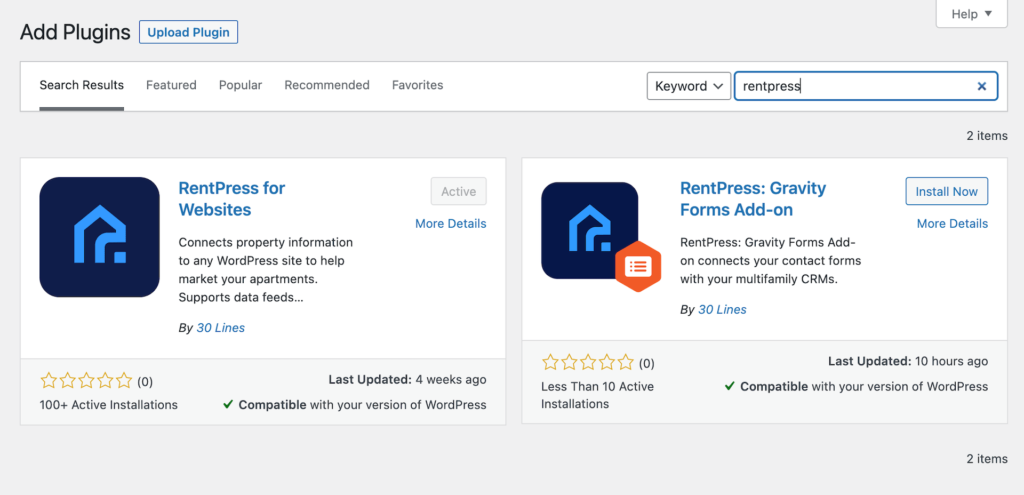
  2. Navigate to Plugins > Add New.
  3. Search for RentPress: Gravity Forms Add-on.
  4. Click Install Now and then Activate.


Step 2: Connect Your CRM

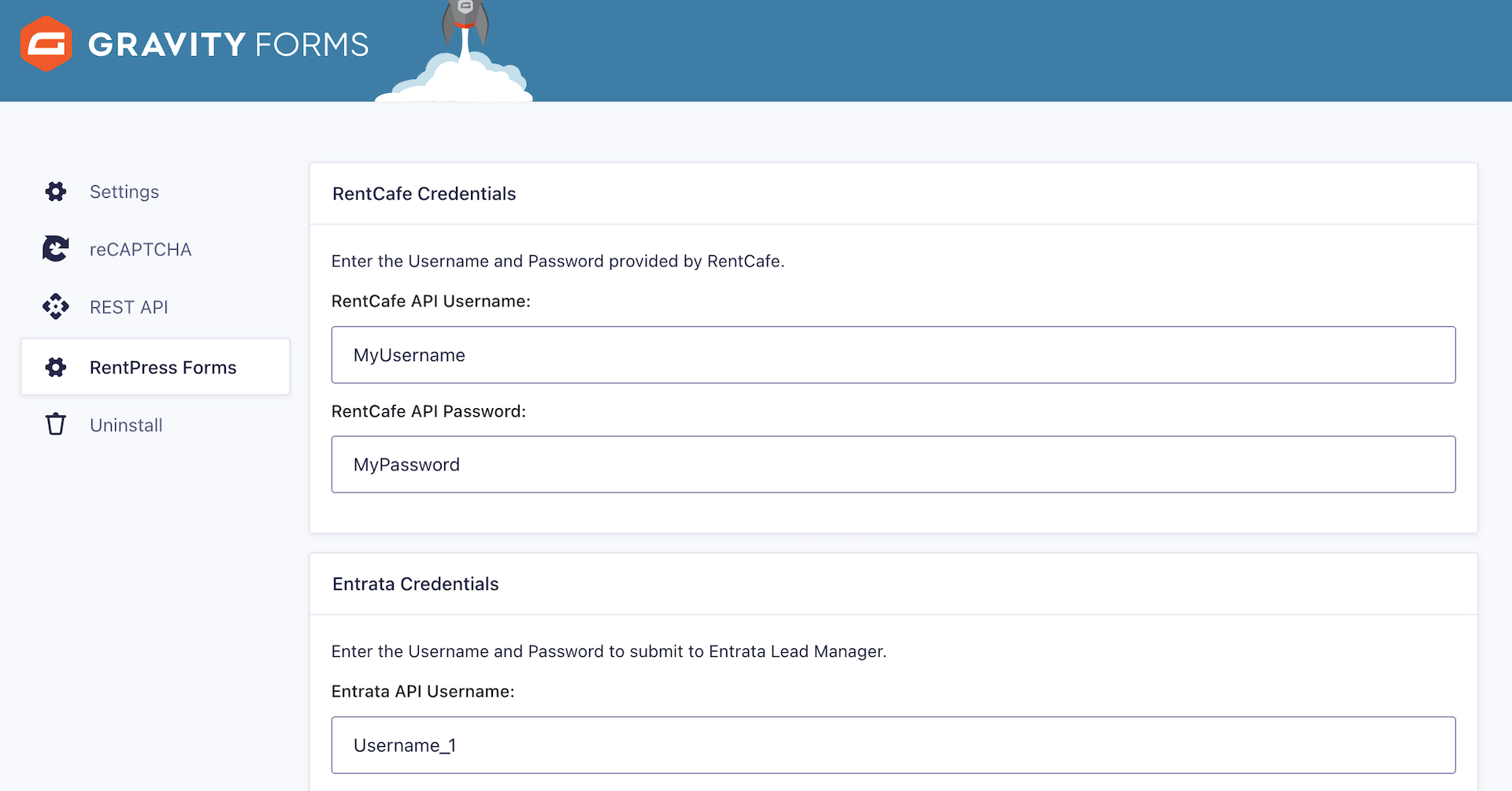
To start sending leads, you must authenticate your CRM and ensure API access. Navigate to Forms > Settings > RentPress Forms and locate your specific CRM below to enter the required credentials.

Anyone Home

  • Anyone Home API Username
  • Anyone Home API Password
  • Anyone Home API Key

AppFolio

  • AppFolio Client ID
  • AppFolio Client Secret
  • AppFolio Partner ID

Entrata

  • Entrata API Key
  • Entrata API Subdomain

Note: Only enter the company name portion of the subdomain (typically the name of the property management company as one word).

Funnel

  • Funnel API Key

Knock

  • Knock API Username
  • Knock API Password

RentCafe

  • RentCafe API Token
  • RentCafe Company CodeThe letter “c” followed by a series of numbers.
  • RentCafe API Password
  • API Username (Provided by 30 Lines)
  • Dashboard Company ID (Provided by 30 Lines)
  • Dashboard API Key (Provided by 30 Lines)

Note: Reach out to 30 Lines to obtain your API Username, Dashboard Company ID, and Dashboard API Key.


Step 3: Configure Feed Settings

This is the most critical step. You must map the fields on your Gravity Form to the corresponding fields in your CRM to ensure data is transmitted correctly.

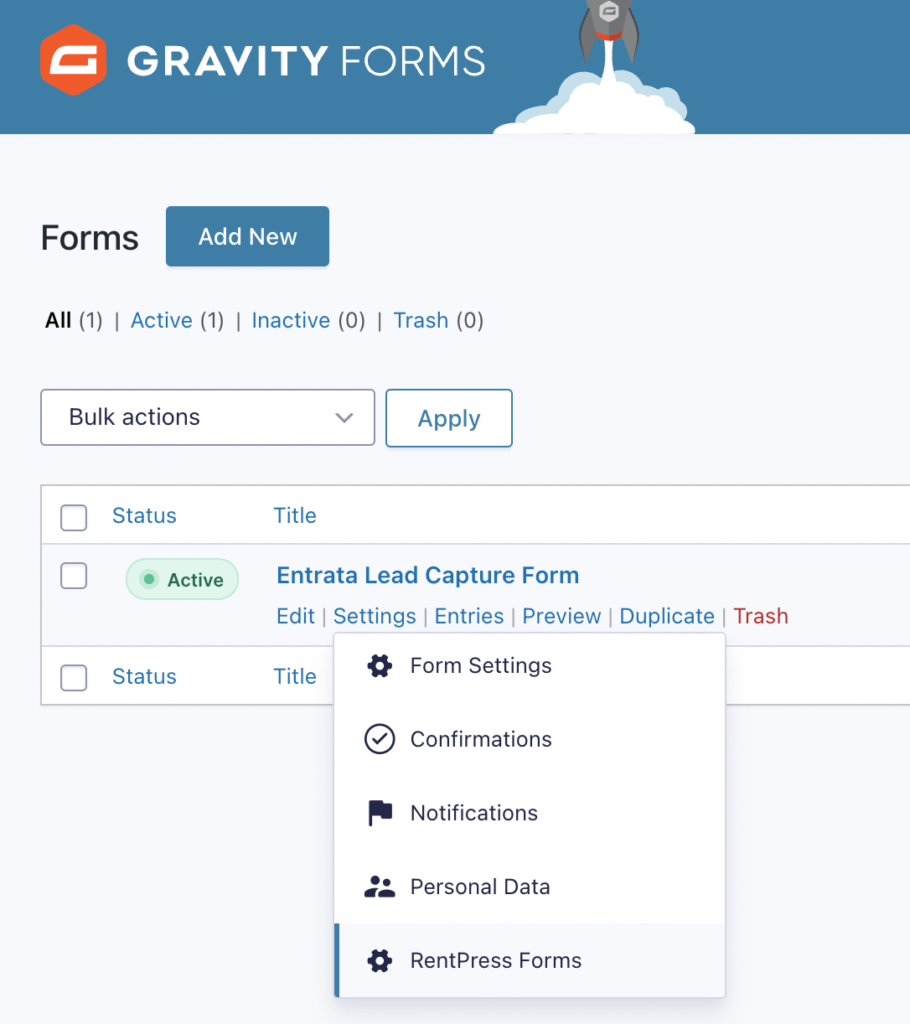
  1. Navigate to Forms and select the specific form you are using for leads.
  2. Hover over Settings (top menu) and click RentPress Forms.
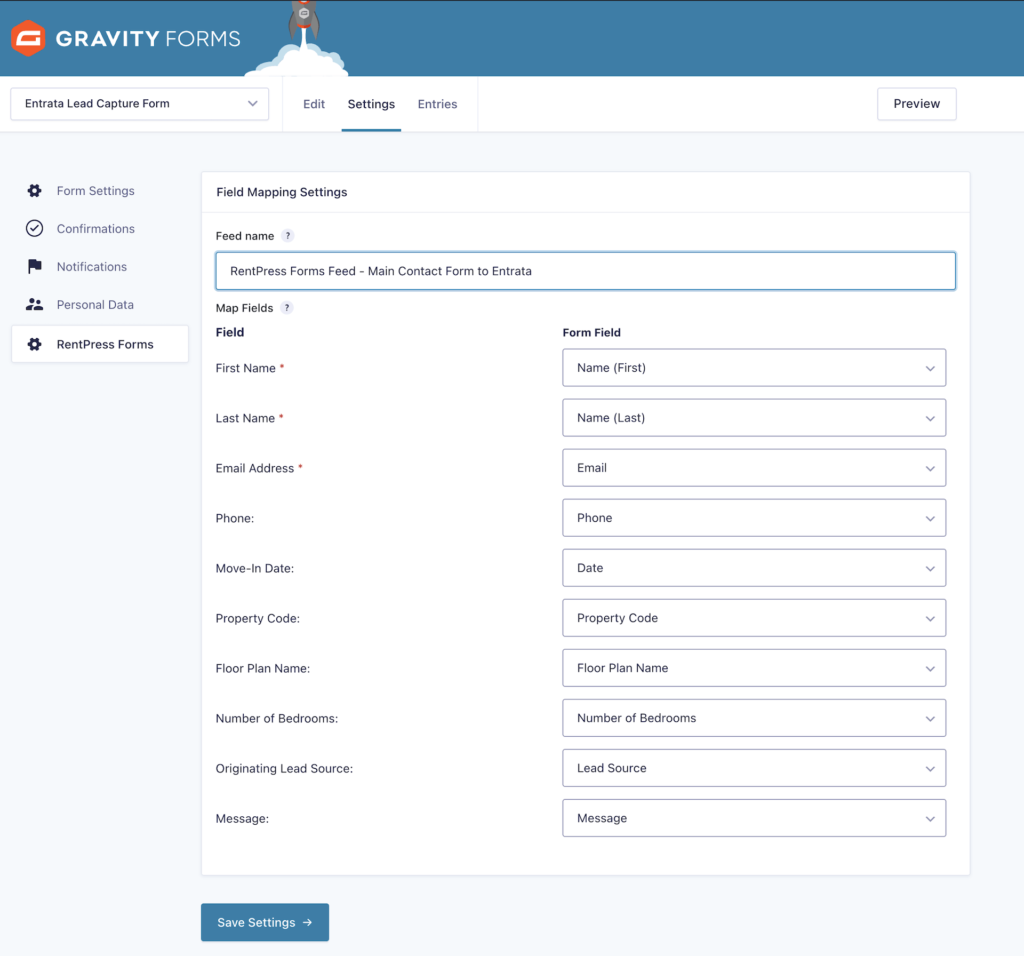
  3. Click Add New to create a feed.
  4. Give your feed a name (e.g., “Entrata Lead Sync”).
  5. Map Fields: Use the dropdowns to select the corresponding Gravity Form field for each CRM field.

You will see a screen that says you don’t have any feeds configured. Click on Create One or Add New to create a new feed. That will take you to the Feed Settings screen in Step 4.


Step 4: Map Your Fields

While field configuration allows for flexibility, we recommend referencing the tables below to ensure accurate mapping for your selected CRM. For each required field, click the dropdown menu and select the option that matches the field on the left side of your screen. You may notice some options are already filled in; this is because the plugin automatically selects fields of the correct type by default (e.g., mapping a “Name” field to “First Name”).

If your form does not include a field that matches your CRM’s requirements, consider adding it to the form so it becomes available in the Feed Settings menu. Once you have mapped every field you wish to send to your 3rd-party API, click the Save Settings button at the bottom of the screen to save your changes.

Felds marked with an asterisk (*) are strictly required by the CRM. If a required field is missing from your form, the lead may fail to send. While every CRM has different requirements, the Lead Email Address and Property Code/ID are generally mandatory.

Anyone Home Settings
Add-On Field Label Required? Gravity Form Field Type API Mapping Configuration Notes
First Name Yes Single Line Text FirstName Standard text.
Last Name Yes Single Line Text LastName Standard text.
Email Address Yes Email Email Standard email.
Phone No Phone Phone Auto-strips non-numeric characters.
Message No Paragraph Text Comments Sends as comments.
Move-In Date No Date TargetMoveInDate Sends raw date.
Property Code Yes Hidden PrimaryID Property ID
Number of Bedrooms No Number DesiredNumBedrooms Numbers only.
Occupants No Number TotalOccupants Numbers only.
Max Budget No Number DesiredRent Numbers only.
Address Line One No Address (Street) Street Combines with Addr 2 for “Street”.
Address Line Two No Address (Line 2) Street Combines with Addr 1 for “Street”.
City No Address (City) City Map from Address Block.
State No Address (State) State Map from Address Block.
Zip Code No Address (Zip) ZipCode Map from Address Block.
Lead Source Yes Hidden OriginatingLeadSource Required. Hardcode Source (e.g. “Website”) in Default Value of the hidden field.
Property Email Yes Email ListingContactEmail Standard email.
API Response No Hidden (System Response) Saves full server response.
AppFolio Settings
Add-On Field Label Required? Gravity Form Field Type API Mapping Configuration Notes
First Name Yes Single Line Text FirstName Standard text.
Last Name Yes Single Line Text LastName Standard text.
Email Address Yes Email Email Standard email.
Phone No Phone PhoneNumber Standard phone.
Move-In Date No Date DesiredMoveIn Date Formate yyyy-mm-dd
Property Code Yes Single Line Text, Dropdown, Hidden PropertyId Hardcode your Property ID.
Number of Bedrooms No Number Bedrooms Numbers only.
Occupants No Number AdditionalOccupants Counts as additional people (1 = 1 person besides applicant).
Max Budget No Number MaxRent Formats to 2 decimal places.
Has Cats No Checkbox HasCats Sends “false” if unchecked.
Has Dogs No Checkbox HasDogs Sends “false” if unchecked.
Has Other Pet No Checkbox HasOtherPet Sends “false” if unchecked.
Status No Hidden Status AppFolio status code.
Lead Source No Hidden Source Defaults to “Website”.
Unit No Hidden UnitIds Requires JSON array ["UnitID"].
API Response No Hidden (System Response) Saves full server response.
Message No Paragraph Text Messages Sends as message array.
Entrata Settings
Add-On Field Label Required? Gravity Form Field Type API Mapping Configuration Notes
First Name Yes Single Line Text FirstName Standard text.
Last Name Yes Single Line Text LastName Standard text.
Email Address Yes Email Email Standard email.
Phone No Phone PhoneNumber Auto-strips non-numeric characters.
Message No Paragraph Text Comment Sends as comments.
Move-In Date No Date TargetMoveInDate Sends raw date.
Property Code Yes Single Line Text, Dropdown, Hidden PropertyId Property ID
Number of Bedrooms No Number DesiredNumBedrooms e.g., “1”, “2”.
Occupants No Number NumberOfOccupants Defaults to 1 if blank.
Floor Plan Name No Text or Hidden DesiredFloorplan Sends “No Floorplan Given” if blank.
Lead Source No Hidden OriginatingLeadSource Defaults to “website”.
Address Line One No Address (Street) AddressLine1 Map from Address Block.
Address Line Two No Address (Line 2) AddressLine2 Map from Address Block.
City No Address (City) City Map from Address Block.
State No Address (State) State Map from Address Block.
Zip Code No Address (Zip) PostalCode Map from Address Block.
API Response No Hidden (System Response) Saves full server response.
Unit No Single Line Text, Hidden DesiredUnit.IDValue Specific Unit ID.
Funnel Settings
Add-On Field Label Required? Gravity Form Field Type API Mapping Configuration Notes
First Name Yes Single Line Text first_name Standard text.
Last Name Yes Single Line Text last_name Standard text.
Email Address Yes Email email Standard email.
Phone No Phone phone_1 Auto-strips non-numeric characters.
Message No Paragraph Text message Sends as lead comments.
Move-In Date No Date move_in_date Re-formats to Y-m-d.
Number of Bedrooms No Dropdown or Radio layout Strict Values Required:
0 = studio
1 = 1br
2 = 2br
3 = 3br
4 = 4+br
Occupants No Number occupants Numbers only.
Min Budget No Number price_floor Numbers only.
Max Budget No Number price_ceiling Numbers only.
Lead Source Flag No Hidden (matchedSource) Stores the count of matched sources for debugging.
Community ID Yes Single Line Text, Dropdown, Hidden community Hardcode your Community ID.
Client Referral No Hidden client_referral Referral details text.
Campaign ID No Hidden campaign_id Campaign identifier.
Campaign Info No Hidden campaign_info Additional campaign details.
Device No Hidden device User device type.
Source Type No Hidden source_type Type of source (e.g. organic).
Unit No Single Line Text, Dropdown, Hidden unit Unit ID.
Group No Single Line Text, Dropdown, Hidden group Group identifier. Hardcode your Group ID.
Lead Source No Hidden lead_source Validates against Discovery Sources if possible.
API Response No Hidden (System Response) Saves full server response.
SMS opt-in No Checkbox or Hidden sms_opted_in Allowed Values:
marketing-enabled
marketing-disabled
all-sms-disabled
client-opted-out
Zip Code No Address (Zip) zipCode Map from Address Block.
Has Cats No Checkbox pets Adds 10 to pets list.
Has Dogs No Checkbox pets Adds 40 to pets list.
Knock Settings
Add-On Field Label Required? Gravity Form Field Type API Mapping Configuration Notes
First Name Yes Single Line Text firstName Standard text.
Last Name Yes Single Line Text lastName Standard text.
Email Address Yes Email email Standard email.
Phone No Phone phone Auto-strips non-numeric characters.
Message No Paragraph Text message Sends as lead comments.
Move-In Date No Date moveDate Sends raw date format.
Number of Bedrooms No Dropdown or Radio bedrooms Must use these values:
Label: Studio → Value: 0
Label: 1 Bed → Value: 1
Label: 2 Bed → Value: 2
Label: 3 Bed → Value: 3
Occupants No Number occupants Numbers only.
Min Budget No Number minBudget Numbers only.
Max Budget No Number maxBudget Numbers only.
API Response No Hidden (System Response) Saves the resulting Lead ID here.
Community ID Yes Single Line Text, Dropdown, Hidden communityId Hardcode your Community ID.
RentCafe Settings
Add-On Field Label Required? Gravity Form Field Type API Mapping Configuration Notes
First Name Yes Single Line Text firstName Standard text.
Last Name Yes Single Line Text lastName Standard text.
Email Address Yes Email email Standard email.
Phone No Phone phone Standard phone.
Message No Paragraph Text message Standard text.
Property Code Yes Single Line Text, Dropdown, Hidden propertyCode Hardcode your Property Code.
Secondary Source No Hidden source Maps to API source.
Address One No Address (Street) addr1 Map from Address Block.
Address Two No Address (Line 2) addr2 Map from Address Block.
City No Address (City) city Map from Address Block.
State No Address (State) state Map from Address Block.
Zip Code No Address (Zip) zipCode Map from Address Block.
API Response No Hidden (System Response) Saves full server response body here.


Step 5: Advanced Configuration (Optional)

API Response Logging

Within the RentPress: Gravity Forms Add-on, there’s an option to capture the API Response on a form. To set this up, add a hidden field to your Gravity Form titled API Response. Then, map API Response in the form settings under the RentPress Forms tab and save. The API responses will then appear within the form entries data.

Setting up the API Response field allows you to verify whether form submissions are successfully processing through the API. Each submission will log the API response within the form entry, providing valuable information for troubleshooting.

  1. Add a Hidden Field to your Gravity Form titled “API Response”.
  2. In the RentPress Feed Settings, map the API Response field to this hidden field.


Dynamic Population

If you are using RentPress templates, you can pre-populate hidden fields on your form using URL parameters. This is useful for tracking which unit or floor plan a user was viewing.

  • property_code
  • property_name
  • floorplan_code
  • floorplan_name
  • floorplan_bed
  • unit_code
  • unit_name

See this example » that displays fields that are usually hidden.

More info » from Gravity Forms about dynamically populating fields.


Troubleshooting

The Logging Settings section allows you to enable logging for form submissions and responses from lead destinations in the RentPress: Gravity Forms Add-on. This can help troubleshoot authentications issue or errors. Logs are stored in plugin files and are meant for troubleshooting only.

If leads are not appearing in your CRM, enable logging to diagnose the issue.

  1. Go to Forms > Settings > RentPress Forms.
  2. Scroll to Logging Settings.
  3. Check Enable Submission Args Logging and Enable Submission Response Logging.
  4. Log Path: /wp-content/plugins/rentpress-gravity-forms-add-on/rentpress_gravity_forms_logs.log

Note: Logs will only appears after a submission is made when enabled. This also may contain personal lead data. Only enable this during troubleshooting and delete the log file when finished.

What API Endpoints are used?
CRM Endpoint URL
Anyone Home https://api.anyonehome.com/api/leadmanagement/importguestcard
AppFolio https://api.appfolio.com/api/v0/leads
Entrata https://apis.entrata.com/ext/orgs/{subdomain}/v1/leads
Funnel https://nestiolistings.com/api/v2/clients
Knock https://syndication.knockrentals.com/prospect
RentCafe https://basic.rentcafeapi.com/lead/createlead